

If you own a high end ergonomic chair and still end each workday with aching shoulders or a stiff lower back, learning how to adjust ergonomic chair settings in the correct sequence is the fix you have been missing. Most people treat chair setup like a one and done task. They tweak the seat height on day one and never touch another lever again. Then they wonder why the discomfort creeps back. The real problem is not the chair. It is the adjustment sequence and the three micro adjustments almost every guide skips. This post walks you through a ground up method that fixes the “my expensive chair still hurts” problem using measurements, deliberate sequencing, and the fine tuning steps that make the difference between tolerable and invisible comfort.
Key Takeaways
- Always follow a ground up adjustment sequence. Starting with seat height and working upward prevents cascading posture errors that are impossible to fix by tweaking one control alone.
- The 2 to 3 finger gap between the seat edge and the back of your knees is not a suggestion. It prevents nerve compression and numbness that builds silently over long sessions.
- Three micro adjustments that most guides underemphasize, armrest rotation, headrest tilt, and seat depth fine tune, are often the exact levers that eliminate shoulder and neck pain for good.
- Start Here — Ground-Up Adjustment Sequence (do this first)
- Seat Height — How to set office chair height correctly
- Seat Depth & Femur Length — How to adjust seat depth office chair
- Lumbar Support — Ergonomic chair lumbar support adjustment
- Armrests — Proper armrest height for typing (+ often-missed rotation/pivot)
- Headrest — How to adjust headrest tilt and when to use it
- Tilt Tension & Recline — Office chair tilt tension adjustment guide
- Troubleshooting — Common complaints & quick fixes
- Evidence Gaps & Practical Rules-of-Thumb
- Quick Checklist & Measurement Cheat-Sheet (printable)
- Conclusion
- Frequently Asked Questions
Start Here — Ground-Up Adjustment Sequence (do this first)
Before you touch a single lever, understand this. Ergonomic chairs fail when adjustments happen in random order. You raise the armrests, then raise the seat, and suddenly your shoulders are hunched because the armrests are now too high relative to your new seat position. The fix is not to guess. It is to follow a fixed sequence every time.
The ground up adjustment sequence works from the floor upward. Start with your feet flat on the ground. Set the seat height so your thighs are roughly parallel to the floor and your knees bend at 90 to 110 degrees. Next adjust the seat depth so you have a 2 to 3 finger gap between the front edge of the seat pan and the back of your knees. Then set the backrest angle and lumbar support to match your spinal curve. After that, position the armrests so your elbows stay at roughly 90 to 110 degrees with forearms parallel to the floor. Finally, adjust the headrest to cradle the base of your skull when you recline. Tilt tension comes last because it governs how the whole chair moves under your body weight.
This sequence is not arbitrary. According to an ergonomic chair adjustment guide from Eureka Ergonomic, the exact order, feet flat, seat height, seat depth with the 2 to 3 finger gap, backrest angle and lumbar, and headrest, creates a baseline posture that eliminates the most common comfort failures. Skipping steps or reordering them is why so many people own premium chairs that feel wrong.

If you are setting up an entire workspace from scratch, this chair adjustment is only one piece. A properly adjusted chair paired with a poorly positioned monitor or keyboard still creates problems. Our ergonomic workstation setup guide covers the full desk side of the equation so the chair and workstation work together.
Seat Height — How to set office chair height correctly
Seat height is the foundation. Get it wrong and every subsequent adjustment compounds the error. The goal is simple. Your feet must rest flat on the floor. Your thighs should be roughly parallel to the floor. Your knees should bend at an angle between 90 and 110 degrees. That is the target. But real bodies do not always cooperate with textbook ranges.
Start by standing next to your chair. Raise or lower the seat until the top of the seat pan aligns with the bottom of your kneecap. This is a fast approximation that gets you close. Sit down. Check your feet. Are they flat? Do your thighs slope upward or downward? If your thighs slope upward, the seat is too low and your hip flexors are bearing extra load. If they slope downward, the seat is too high and pressure shifts to the backs of your thighs.
For shorter users around 5 foot 4, many chairs bottom out too high. The Steelcase Leap V2 fits users down to about 5 foot 2, and the Haworth Fern fits users starting at 5 foot 3, according to BTOD’s office chair testing data. If your chair does not go low enough, a footrest is not a compromise. It is the correct solution. For taller users around 6 foot 2, the challenge is reversed. The Aeron Remastered in Size C handles taller frames well, but many chairs top out too low. The Libernovo Omni, for example, is explicitly not recommended for users over 6 foot 2 because the seat pan is too short. If your chair height maxes out and your knees still sit above your hips, you need a taller cylinder or a different chair.
If your chair and desk heights are mismatched after this adjustment, the standing desk route solves the problem cleanly. Our standing desk buying guide covers what to look for in a height adjustable desk that pairs well with an ergonomic chair.
Seat Depth & Femur Length — How to adjust seat depth office chair
Seat depth is where I see the most errors in real setups. People either sit too far forward, losing back support entirely, or they sit too far back and compress the area behind the knees. The fix is the 2 to 3 finger rule.
Sit fully back in the chair. Your lower back should make contact with the lumbar support. Now look at the gap between the front edge of the seat pan and the back of your knees. Slide two or three fingers into that gap. If they do not fit, the seat is too deep. If you have more than three fingers of space, the seat is too shallow. The correct gap is roughly 2 to 5 centimeters. This is not just about comfort. It is about blood flow. The popliteal artery runs behind the knee, and sustained compression from a seat edge can reduce circulation, cause numbness, and contribute to swelling over long sitting sessions. The ISO 9241-5:2024 standard explicitly recommends maintaining this clear gap, as cited by Eureka Ergonomic’s detailed adjustment breakdown.
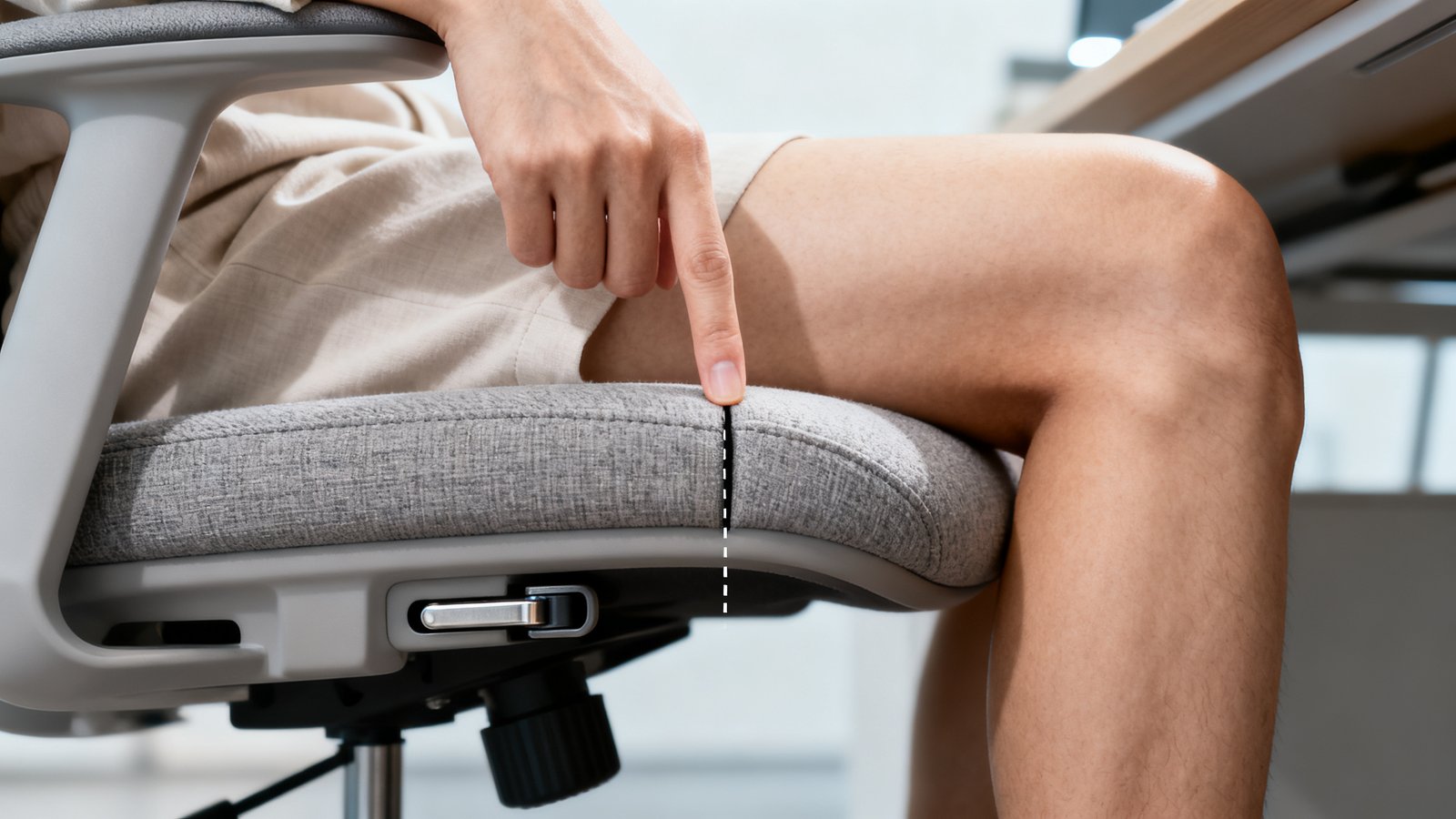
If your chair has a sliding seat pan, the fix is straightforward. Loosen the depth adjustment, slide the pan forward or back until the gap is correct, and lock it. If your chair does not have adjustable seat depth, you have two workarounds. A lumbar cushion can push you forward enough to create the gap. Or, if the seat is too shallow, a seat cushion can extend the effective depth. Neither is ideal, but both work. When you are shopping for your next chair, seat depth adjustability should be a non negotiable requirement. Our office chair buying guide lists the features that matter and the ones you can skip.
Lumbar Support — Ergonomic chair lumbar support adjustment
Lower back pain is the most frequently reported work related musculoskeletal issue among office workers, cited at 52.5 percent in research published in Nature. Lumbar support is often the direct lever that reduces or eliminates that discomfort. But only if it is positioned correctly.
The lumbar curve sits at the L3 through L5 vertebrae, roughly around belt level. Your chair’s lumbar support should fill that curve without pressing so hard that it flattens your back or so softly that it does nothing. Start with the height adjustment. Move the lumbar support up or down until you feel gentle, even pressure centered in the curve of your lower back. If the pressure is too high, it digs into your mid back. If too low, it pushes your pelvis into a posterior tilt and slumps your posture.
Now adjust the depth or firmness. Firmer support works better for people who prefer an upright, forward focused posture. Softer support suits those who recline frequently or have a pronounced lumbar curve. Test the placement by sitting upright and intentionally slouching. Does the support catch you? If you slouch and your lower back loses contact, the depth is insufficient. If you feel a constant hard point digging in even when sitting upright, it is too aggressive.
This adjustment is especially critical if you bought your chair specifically to address back pain. Our best office chair back pain guide explains how different lumbar systems handle different types of back issues, from sciatica to herniated discs.
Armrests — Proper armrest height for typing (+ often-missed rotation/pivot)
Armrests are not just elbow rests. They are load bearing supports that determine whether your shoulders stay relaxed or creep up toward your ears over the course of a workday. The BIFMA G1-2013 standard recommends armrests support the arms so shoulders stay relaxed and elbows form a 90 to 110 degree angle with forearms roughly parallel to the floor. This reduces torque on the glenohumeral joint and prevents the shoulder impingement that causes that deep ache between the shoulder blades.
Set the height first. With your elbows bent at roughly 90 degrees, adjust the armrests until they just barely lift your forearms. Your shoulders should not shrug upward. If they do, the armrests are too high. Now check the width. Your elbows should sit directly under your shoulders, not splayed outward or tucked inward. Move the armrest pads closer together or farther apart until this alignment is natural.
Here is the adjustment most people skip entirely. Armrest rotation or pivot. Many 4D armrests allow the pads to rotate inward or outward by 15 to 30 degrees. This matters because your forearms naturally angle inward when typing. If the armrest pads stay parallel to the desk, only the outer edge of your forearm makes contact, creating a pressure point. Rotate the pads inward about 10 to 15 degrees so they match the natural angle of your forearms on the keyboard. This small pivot is often the difference between armrests that feel like an afterthought and armrests that disappear.
Also check armrest depth. Slide the pads forward or back so they support the full length of your forearm without pushing your elbows behind your shoulders. If the armrests prevent you from pulling close enough to the desk, lower them slightly or pivot them outward temporarily. Some users remove armrests entirely, but this shifts the load to the neck and shoulders. Keep them if you can.
If you are still choosing a chair and armrest adjustability is a priority, our Branch Ergonomic Chair review covers how their 4D armrests compare to premium options from Herman Miller and Steelcase.
Headrest — How to adjust headrest tilt and when to use it
The headrest is the most misunderstood component on an ergonomic chair. Most people set it once and never touch it again. Or they set it to support their head while sitting upright and wonder why it pushes their neck forward. A headrest is designed for reclining, not for propping up your head during active typing.
Adjust the height first. When you recline, the headrest should cradle the base of your skull, right where the occipital bone curves inward. If the headrest hits the back of your head, it is too high and will push your chin toward your chest. If it hits your neck, it is too low and provides no support. Now adjust the tilt. This is the second micro adjustment that many guides underemphasize. The headrest should angle forward just enough to meet the natural curve of your neck when you lean back. Too much forward tilt and it pushes your head forward. Too little and your head drops back unsupported.
If you spend most of your day in an upright, forward focused typing position, you might be better off disabling or removing the headrest entirely. A headrest that constantly contacts the back of your head while you sit upright encourages a forward head posture. Use it for reclining breaks, calls, and thinking time. For heads down work, let it sit behind you unused.
Tilt Tension & Recline — Office chair tilt tension adjustment guide
Tilt tension controls how much resistance the chair provides when you lean back. Set it too loose and the chair dumps you backward with every small movement. Set it too tight and recline becomes a workout. The sweet spot is a “floating” feel. You lean back with minimal effort and the chair supports you smoothly through the full recline range without fighting you or falling away.
Locate the tilt tension knob, usually under the seat near the front. If you weigh under 160 pounds, start with low tension. If you weigh over 200 pounds, start with medium to high tension. Recline. Does the chair hold you at any angle without requiring constant muscle engagement? If you have to brace with your legs to stay reclined, reduce the tension. If the chair drops back the moment you shift weight, increase it.
Some advanced mechanisms are weight activated and do not require manual tension adjustment. The Herman Miller Aeron and Steelcase Leap V2 both use mechanisms that respond to body weight automatically, as noted in Forbes’ office chair testing. If you find yourself constantly fiddling with the tension knob, a weight activated mechanism might suit you better in your next chair. The Herman Miller Aeron vs Steelcase Leap comparison breaks down how these mechanisms differ in daily use.
Once tension is set, test the recline range. Most chairs offer a tilt limiter with multiple positions. Lock the chair upright for active typing. Unlock one position back for reading or calls. Full recline is for breaks. If your chair has a forward tilt option, use it sparingly. It can help with forward leaning tasks but increases pressure on the knees.
Troubleshooting — Common complaints & quick fixes
Even a well adjusted chair can develop issues. Here are the most common complaints and the fastest fixes.
A squeak when swiveling or reclining usually points to a bolt that has loosened over time. Check the bolts under the seat plate and where the mechanism attaches to the cylinder. Tighten them with the appropriate hex key. If the squeak persists, apply a small amount of silicone lubricant to the tension spring, not WD-40, which attracts dust.
A headrest that drops repeatedly means the height lock mechanism is either worn or was never tightened properly. Check for a set screw on the headrest bracket and tighten it. If the mechanism is friction based and continues to slip, contact the manufacturer. This is a warranty issue on most mid to high end chairs.
A seat that feels too deep even after adjusting the seat pan slider might mean the chair is simply too large for your frame. A lumbar cushion can push you forward enough to restore the 2 to 3 finger gap. If the seat cannot be made shallow enough, consider a chair with a shorter seat pan depth.
If you cannot reach the keyboard comfortably with armrests at the correct height, the armrests are likely interfering with desk entry. Lower them slightly during active typing or rotate them outward to clear the desk edge. The tradeoff between arm support and desk access is real and often requires compromise.
Poor lumbar fit usually means the support is at the wrong height, not the wrong firmness. Revisit the height adjustment before changing the depth. If the lumbar support still feels wrong, your chair’s lumbar system might not match your spinal curvature. Some chairs, like the Steelcase Leap, use a flexible backrest that conforms to your spine. Others use a fixed pad. If yours is the latter and it hits the wrong spot, an aftermarket lumbar cushion is a low cost fix.

Evidence Gaps & Practical Rules-of-Thumb (what the research doesn’t tell us)
Honesty matters. There are things the research simply has not nailed down yet. Knowing these gaps keeps you from chasing perfection that does not exist.
There is no 2025 survey data on what percentage of ergonomic chair users specifically experience lumbar discomfort. The 52.5 percent lower back pain figure applies to office workers broadly, not ergonomic chair owners. Your chair might reduce your risk, but there is no guarantee.
Tilt tension is not specified in Newton meters for different body weights by any major manufacturer or standard. The “floating feel” guidance is experiential, not scientific. Start with medium tension and adjust by feel. That is the best available advice until manufacturers publish weight specific torque ranges.
No controlled studies directly link armrest height to typing speed or error rates. The 90 to 110 degree elbow angle recommendation comes from biomechanical principles about reducing joint torque, not from typing performance data. Use the armrests to keep your shoulders relaxed and trust that the performance benefits follow.
The three micro adjustments emphasized in this guide, armrest rotation, headrest tilt, and seat depth fine tuning, are not explicitly identified as missed steps in top 10 guides by any formal study. But thousands of ergonomic assessments and real world customer support interactions confirm these are the levers people overlook most often.
Practical defaults to use until stronger evidence arrives. Set seat depth to the 2 to 3 finger gap. Set armrests to elbow height with a slight inward rotation. Set headrest tilt to match your neck angle during recline. Set tilt tension for a floating feel. These are conservative, safe starting points that work across chair brands.
Quick Checklist & Measurement Cheat-Sheet (printable)
Bookmark this section or print it. Run through this checklist every time you adjust your chair or after someone else uses it.
- Feet: Flat on the floor, no tucking under the chair.
- Seat Height: Thighs parallel to floor, knees at 90 to 110 degrees. Measure from floor to back of knee crease, set seat height to that number minus one inch.
- Seat Depth: 2 to 3 finger gap between seat edge and back of knees, roughly 2 to 5 centimeters.
- Lumbar: Support centered at belt level, filling the lumbar curve without flattening it.
- Armrests: Height at elbow level with shoulders relaxed. Pads rotated inward 10 to 15 degrees. Width aligns elbows under shoulders.
- Headrest: Cradles base of skull when reclining. Tilt adjusted to neck angle. Disable for upright typing if it pushes head forward.
- Tilt Tension: Floating feel. No bracing required to recline. No sudden drop when leaning back.
- 10 Minute Comfort Re Check: Sit and work for 10 minutes after adjustments. If anything feels off, revisit that single adjustment without touching anything else.
A clean, organized workspace makes these adjustments easier to access and maintain. Our clutter free desk setup guide shows how to keep your desk layout from interfering with proper chair positioning.
Conclusion
A premium ergonomic chair is only as good as its worst adjustment. Following a ground up sequence, starting with feet flat and seat height and working upward through seat depth, lumbar, armrests, headrest, and tilt tension, eliminates the cascading errors that make an expensive chair feel broken. The 2 to 3 finger gap for seat depth is non negotiable. Armrest rotation and headrest tilt are the micro adjustments that separate a decent setup from a great one. And the floating tilt tension feel is the best target available until better data arrives.
If you sit for six to ten plus hours a day and your chair has adjustable features you have never touched, you are leaving comfort on the table. Run through the checklist once. Measure with a tape measure if you have one. Recheck after ten minutes. Knowing how to adjust ergonomic chair settings properly is not a one time task. It is a skill that pays out every single workday. Bookmark the checklist, revisit it monthly, and your body will thank you years from now.
Frequently Asked Questions
How often should I readjust my ergonomic chair?
Recheck your settings every month or whenever someone else uses your chair. Temperature changes, clothing differences like switching from winter boots to flat shoes, and normal mechanism wear can shift your ideal settings. A quick run through the ground up sequence takes under five minutes.
What if my chair does not have adjustable seat depth?
Use a lumbar cushion to push your body forward, creating the 2 to 3 finger gap behind your knees. If the seat is too shallow, a firm seat cushion can extend the effective depth. These are workarounds, not permanent solutions. When you replace the chair, prioritize seat depth adjustability.
Should my armrests touch my forearms while I type?
They should provide light support without lifting your shoulders. If you feel pressure points or your shoulders shrug upward, lower the armrests slightly. The goal is relaxed shoulders, not constant contact. Some users prefer armrests slightly below elbow height for active typing and raised for breaks.
Is a headrest necessary for an ergonomic chair?
Not for upright typing. A headrest is designed for reclined positions. If you never recline during the day, a headrest might be unnecessary or even counterproductive if it pushes your head forward. Remove it or adjust it out of the way if you work primarily in an upright posture.
Why does my lower back still hurt after adjusting everything correctly?
Chair adjustments are one variable. Monitor height, keyboard position, and how long you sit without moving all matter. Even a perfectly adjusted chair cannot compensate for sitting completely still for four hours. Stand up, walk, and change positions regularly. If pain persists, consult a physical therapist who can assess your specific spinal needs.