

An ergonomic workstation setup is no longer a nice to have. It is the single most important investment you can make if you spend six to ten plus hours a day at a home desk. Up to 61% of remote workers now report worsening musculoskeletal pain and 41% report new or worsened back, shoulder, or wrist pain while working from home, according to recent research from John Foy & Associates and PTSMC. This guide fills the gaps most top ranking articles leave wide open.
Key Takeaways
- Laptop only users face 2 to 3 times higher risk of neck, upper back, and lower back discomfort compared to desktop monitor users, making an external monitor the single highest impact fix.
- Women are over 2.3 times more likely to report neck, lower back, and shoulder pain and account for 63% of all work related repetitive motion injuries, so equitable setup guidance matters.
- Most mainstream guides skip critical subtopics like monitor distance for bifocal users, sit stand transition timing, and chair tilt calibration for sciatica. This post covers them explicitly.
- Why home ergonomics matters right now
- How poor setups translate into injury claims and gender disparities
- The single biggest hardware risk: laptops and screen height
- Top 3 overlooked mistakes that still cause neck strain
- What mainstream ergonomic guides miss
- Your 2026 ergonomic workstation checklist: 10 action items
- How to perform a home office ergonomics self assessment
- Chair selection and lumbar support: what actually matters
- Monitor setup: height, distance, and the bifocal problem
- Sit stand desks: timing, transitions, and what we still do not know
- Evidence: what ergonomic interventions actually improve
- Regulations vs. expert bloggers: where they align and differ
- Durability, failure points, and smart buying
- Quick fixes under $100 and investment buys
- Your 30, 60, and 90 day improvement plan
- Sources to cite and mandatory follow up research
- Conclusion
- FAQ
Why home ergonomics matters right now
Remote and hybrid work changed exposure patterns overnight. Before 2020, millions of knowledge workers relied on employer provided workstations built to ANSI and BIFMA standards. Today, many of those same workers sit at kitchen tables, on couches, or at makeshift desks never designed for eight hour shifts.
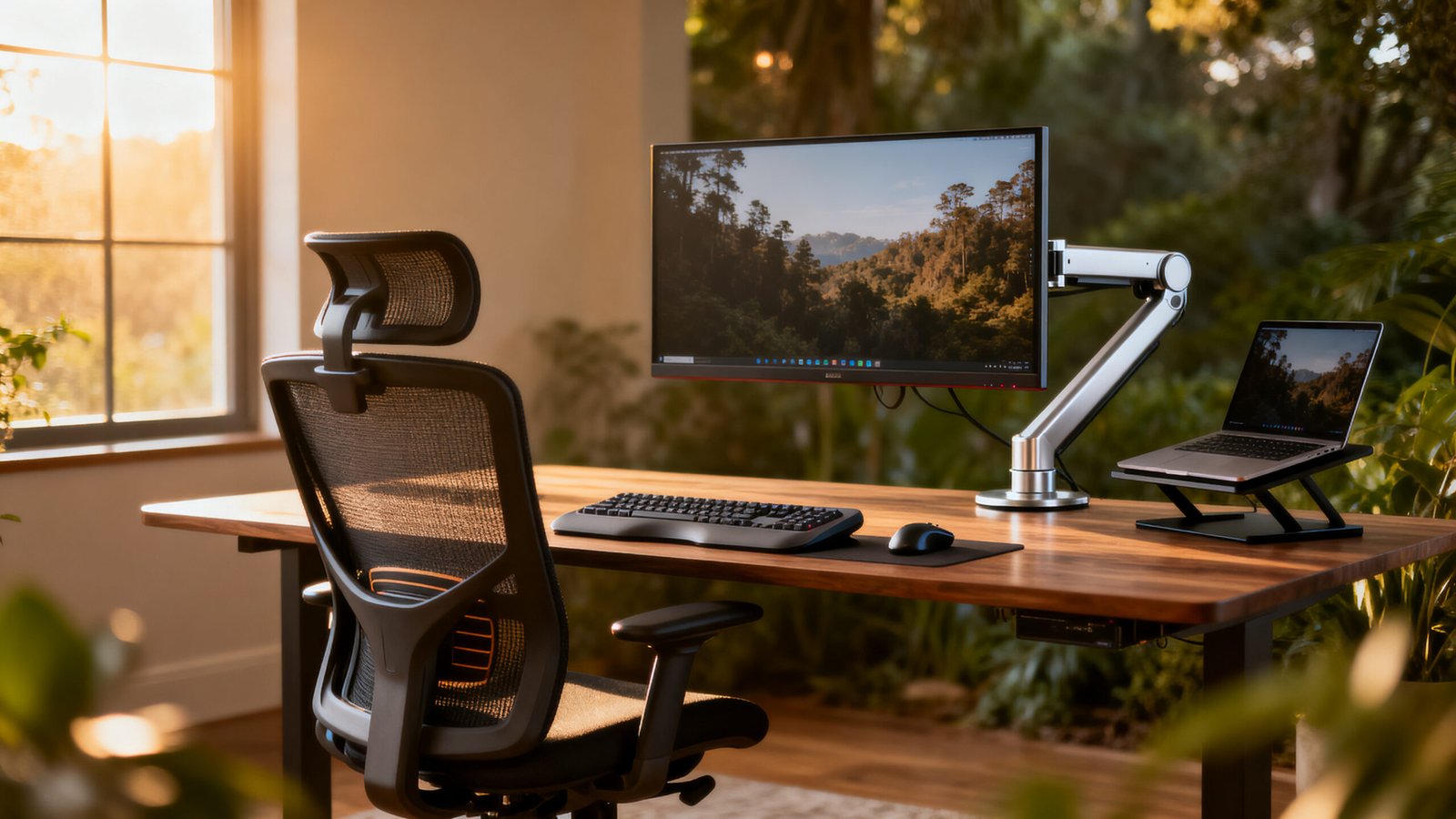
The prevalence numbers justify urgency. Up to 61% of remote workers report worsening musculoskeletal pain. Injury claims among remote employees have increased by 24% to 54%, with the National Council on Compensation Insurance tying most cases to musculoskeletal strain and stress related conditions. This is not a minor uptick. It is a structural shift in how work related injuries occur.
A consolidated ergonomic home office guide matters because piecemeal advice fails. Readers who try to fix one element, like buying a new chair while ignoring screen height, often see zero improvement. The risk factors compound. This post gives you a single weekend actionable plan backed by the best available evidence and clearly flags where the research falls short so you are never misled.
How poor setups translate into injury claims and gender disparities
Pain prevalence is not evenly distributed. Women working remotely are over 2.3 times more likely to report neck, lower back, and shoulder pain compared to men. They also account for 63% of all work related repetitive motion injuries. These numbers, reported by John Foy & Associates, reveal a disparity that most ergonomic content ignores entirely.
Why does this matter for your ergonomic workstation setup? Because generic advice like “set your chair to a comfortable height” assumes a standard body that does not exist. Women, on average, have shorter torsos and may need different lumbar support placement, lower armrest ranges, and smaller keyboard tray depths. An ergonomic office setup for back pain must account for these anthropometric differences or it will fail a substantial portion of users.
The claims data reinforces the stakes. With injury claims up by as much as 54%, employers and insurers are paying attention. A proactive home office ergonomics assessment is cheaper than a workers’ compensation claim and far better than living with chronic pain.
The single biggest hardware risk: laptops and screen height
If you change exactly one thing this weekend, stop working directly on a laptop. Research published in PMC shows that laptop users face significantly elevated risk: neck discomfort odds ratio of 3.033, upper back OR of 3.105, and lower back OR of 2.689. Those are not marginal increases. They represent a two to three times higher likelihood of developing pain.
The problem is mechanical. A laptop fuses the screen and keyboard into one plane. When your screen is at the correct height, your wrists and shoulders elevate unnaturally. When your keyboard is at the correct height, you crane your neck downward. Both positions create sustained static load on the cervical spine and shoulder girdle.
The fix is straightforward. Add an external monitor or a sturdy riser that lifts the laptop screen to eye level, then pair it with a separate keyboard and mouse. This single intervention addresses the largest predictor of neck discomfort identified in the research. If you are building a budget home office setup, start with this split before spending on anything else.
Top 3 overlooked mistakes that still cause neck strain
The research identifies three compounding errors that most remote workers make daily. They act synergistically, meaning two or three together produce far worse outcomes than any single one alone.
Mistake 1: Improper screen height with laptop use. As covered above, this is the largest single predictor. If you can only do one thing, break the laptop screen and keyboard apart.
Mistake 2: Chairs lacking lumbar support. The PMC study found that homeworkers using chairs without backrests experienced significantly higher musculoskeletal discomfort risk. Without spinal support, the cervical spine compensates, leading to forward head posture and increased neck strain. A complete home office setup budget friendly approach might start with a quality chair rather than a desk.
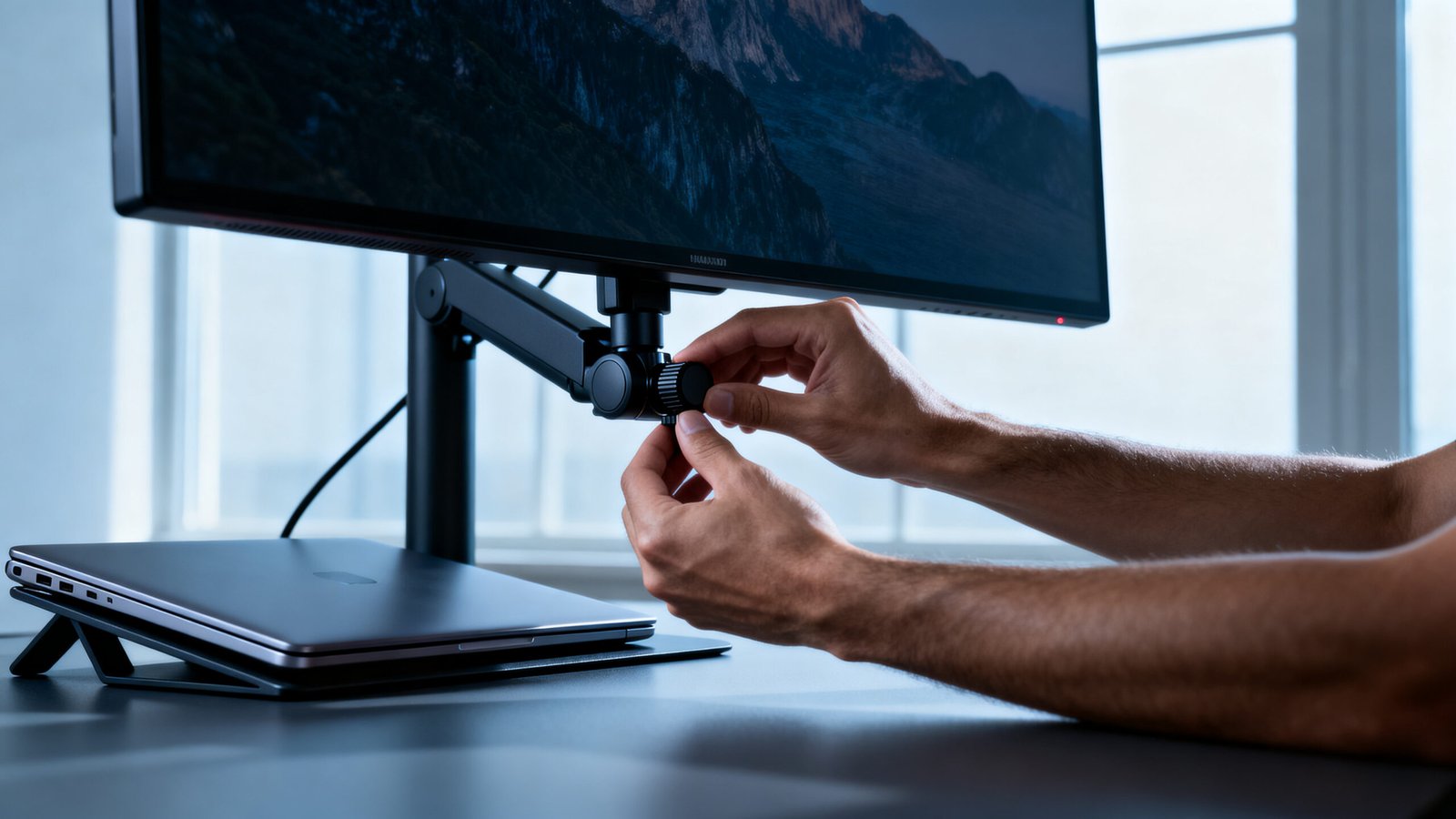
Mistake 3: Prolonged static posture without movement breaks. Remote work eliminates the natural movement transitions of an office, walking to meetings, walking to a colleague’s desk, even walking to the printer. Combined with extended screen time, static posture creates cumulative neck strain regardless of how perfect your initial setup is. The best ergonomic workstation checklist 2026 must include movement cadence, not just furniture positioning.
What mainstream ergonomic guides miss
Most top ranking ergonomic posts cover the basics: monitor at eye level, feet flat on the floor, elbows at 90 degrees. But several high impact subtopics receive almost no attention in mainstream guidance. Here are the gaps that matter.
Sit stand transition timing and frequency. Guides say “alternate between sitting and standing” but rarely specify how often. The research reviewed for this post did not contain specific transition cadence data, a gap we address in the sit stand section below with the best available practical guidance.
Monitor distance for bifocal or progressive lens users. This is a major blind spot. Bifocal wearers often tilt their heads backward to view the screen through the lower portion of their lenses, creating severe neck extension strain. We cover this in the monitor setup section.
Chair tilt angle calibration for sciatica or lumbar lordosis. Generic “adjust your lumbar support” advice fails users with specific conditions. Sciatica sufferers often need a more open hip angle, while those with pronounced lordosis may need deeper lumbar engagement. This is a flag for professional consultation, not a one size fits all fix.
Psychosocial and organizational factors. One source notes that remote workers face higher risks due to psychosocial and organizational factors beyond physical ergonomics. Job stress, isolation, and lack of supervisory support amplify muscle tension and pain perception. No chair fixes a toxic work environment.
Household hazard interactions. Cluttered workspaces create slip, trip, and fall risks that compound ergonomic strain. A clutter free desk setup is not just aesthetic. It reduces physical hazards that can worsen existing musculoskeletal issues.
Your 2026 ergonomic workstation checklist: 10 action items
Given that up to 61% of remote workers report worsening pain, a concise checklist is necessary to reduce compounding risk factors. Use this list to audit your setup in one session.
- Screen height: Top of the monitor at or slightly below eye level. Eyes should align with the top third of the screen.
- Screen distance: Approximately an arm’s length away. Increase slightly for larger monitors.
- Keyboard position: Elbows at roughly 90 degrees, wrists neutral and flat. No upward or downward bend.
- Mouse placement: Directly beside the keyboard at the same height. No reaching forward or sideways.
- Chair lumbar support: Adjustable support positioned in the curve of your lower back. No gaps.
- Seat height: Feet flat on the floor or on a footrest. Thighs roughly parallel to the floor.
- Sit stand cadence: Target a transition every 30 to 60 minutes. Even two minutes of standing counts.
- Break cadence: A 1 to 2 minute microbreak every 25 to 30 minutes. Stand, stretch, look away from the screen.
- Lighting: No direct glare on the screen. Ambient light should be roughly equal to screen brightness.
- Cable and clutter management: Cables secured and off the floor. A cable free desk setup guide can walk you through this step by step.
Items marked with specific measurements require device specific dimensions. For exact desk heights by user height, consult ANSI/BIFMA standards or manufacturer specifications, data not present in the core research for this post.
How to perform a home office ergonomics self assessment
Up to 61% of remote workers report worsening pain and laptop users have 2 to 3 times higher risk. Use this self assessment to triage the highest risk changes first: screen height, chair support, and movement breaks.
Step 1: Take photos. Set your phone on a timer and capture side and front views of yourself seated at your workstation. Do this during actual work, not while posing. The candid posture reveals what you actually do.
Step 2: Measure key angles. Check your elbow angle, should be roughly 90 degrees. Check your knee angle, also roughly 90 degrees. Check your screen height relative to your eyes. A partner helps here.
Step 3: Score each item on the checklist above. Use a simple three tier rubric. “OK” means no adjustment needed. “Improve” means a minor tweak can fix it. “Immediate fix” means this item is causing active strain and needs attention today.
Step 4: Prioritize. Address all “Immediate fix” items first. Screen height and chair lumbar support are the two highest impact changes according to the research. Then work through “Improve” items over the following week.
If you want to learn how to set up ergonomic desk at home from scratch, this self assessment gives you the baseline. Document your scores now and reassess in 30 days to track improvement.
Chair selection and lumbar support: what actually matters
Chairs without backrests produced significantly higher MSD risk in the PMC study. The data is clear: lumbar support is not optional. Here is what to prioritize when selecting a chair for an ergonomic office setup for back pain.
Adjustable lumbar support is the non negotiable feature. It must move up and down to match your specific lumbar curve. Fixed lumbar supports fail anyone whose back curve does not happen to align with the manufacturer’s default.
Backrest recline and tilt tension matter more than most buyers realize. A backrest that locks at a single angle forces static posture. Look for a mechanism that allows controlled recline with adjustable tension so you can shift positions throughout the day.
Gas lift quality determines whether the chair holds its height after 12 months of daily use. Class 4 gas lifts are the standard for durability. Budget chairs often use Class 2 or 3 lifts that fail earlier. We address failure data gaps in the durability section below.
Test before you buy whenever possible. Sit in the chair for at least 15 minutes. Check that the seat pan depth leaves two to three fingers of space between the front edge and the back of your knees. Check that armrests adjust low enough to let your shoulders relax.
Red flags: No backrest, fixed lumbar support that cannot move, armrests that do not adjust in height, and seat pans that are too deep for shorter legs. These are dealbreakers for an ergonomic workstation setup meant to last.
Monitor setup: height, distance, and the bifocal problem
Research identifies improper screen height as the leading predictor of neck discomfort. This section covers standard setup and a dedicated subsection on bifocal and progressive lens users, a topic most guides completely skip.
Single monitor: Position the monitor directly in front of you. The top of the screen should be at or slightly below eye level. Distance should be roughly an arm’s length, about 20 to 30 inches depending on screen size. Your eyes should naturally land on the top third of the display.
Dual monitors: If you use two monitors equally, place them side by side with the bezels touching and angle them slightly inward. Your primary monitor should be centered. If you use one monitor 80% of the time, center that one and place the secondary off to the side at the same height.
Riser use: A dedicated monitor riser or monitor arm gives you precise height control. Stacking books works temporarily but limits adjustability. A home office starter kit 2026 worth its salt should include a proper monitor arm or riser.
Bifocal and progressive lens users: This is the under addressed topic. Bifocal wearers often tilt their heads backward to view the screen through the lower lens segment, creating sustained neck extension. The fix is to lower the monitor slightly below standard recommendations so you can view it without tilting your head. Alternatively, consider single vision computer glasses prescribed for your screen distance. This is a conversation for your optometrist, not a blog post, but the adjustment is critical and most ergonomic guides never mention it.
Sit stand desks: timing, transitions, and what we still do not know
Sit stand desks are widely recommended, but specific transition timing and desk height data for different user heights were not present in the research reviewed for this post. This is a documented gap.
Practical cadence guidance: Based on common practice among ergonomics professionals, target a transition every 30 to 60 minutes. Standing for prolonged periods is as problematic as sitting for prolonged periods. The goal is variation, not a different static posture. Start with 15 to 20 minutes of standing per hour and adjust based on comfort.
Height data gap: The research findings did not contain specific desk height recommendations for a 5 foot 8 inch user versus a 6 foot 2 inch user in centimeters or inches. This information must be sourced from ANSI/BIFMA standards or manufacturer specifications before making a purchase. Check the manufacturer’s height range specification and ensure it accommodates all users of the desk.
Cost data gap: Research did not include cost ranges for adjustable desks that accommodate both a 5 foot 8 inch and 6 foot 2 inch person without a converter. Price sourcing from current marketplace listings is required before finalizing any product recommendations.
For a comprehensive ergonomic home office guide, sit stand capability matters, but do not overpay for features you will not use. Many users find that a fixed height desk paired with a quality chair and regular movement breaks achieves the same outcome at a lower cost.
Evidence: what ergonomic interventions actually improve
The search results for this post did not include peer reviewed studies from 2023 or later that directly quantify pain score reductions or productivity gains from a full ergonomic checklist. This is an important transparency note. Most blog posts would gloss over this gap.
What we know from available evidence: The PMC study demonstrates statistically significant reductions in musculoskeletal discomfort when users switch from laptop monitors to desktop monitors and when they use chairs with backrests. The odds ratios are substantial and the findings are robust. One study of office workers found that those using computers for more than seven hours daily report higher musculoskeletal symptom rates, implying that any ergonomic improvement that reduces sustained static load should help.
What we do not yet have: Controlled intervention studies from 2023 onward that apply a standardized ergonomic workstation checklist 2026 and measure pre and post pain scores using validated instruments like the Nordic Musculoskeletal Questionnaire. This is a research gap worth watching.
The indirect evidence strongly favors action over inaction. Fix monitor height, add lumbar support, and introduce movement breaks. The mechanistic rationale is sound and the observational data supports it.
Regulations vs. expert bloggers: where they align and differ
A critical data gap emerged during research for this post. The search results did not contain direct OSHA or ANSI guideline text on footrest angle, wrist rest height, or the 90-90-90 rule for seated posture. This is a required follow up sourcing task for any writer aiming at authority.
What most expert bloggers recommend: The 90-90-90 rule calls for 90 degrees at the hips, 90 degrees at the knees, and 90 degrees at the ankles with feet flat. It is widely repeated and directionally correct for many users. But it is not a regulatory standard. It is a heuristic.
What OSHA actually expects: OSHA provides ergonomic guidance under the General Duty Clause rather than a single prescriptive standard. A 2025 OSHA expectations overview highlights common issues like poor posture, improper desk and chair height, repetitive strain, eye strain, and prolonged sitting, but specific quantitative limits are not codified in a single remote work standard.
What to do: For an authoritative ergonomic home office guide, the writer must obtain and quote verbatim the relevant sections from ANSI/HFES 100, BIFMA G1, and ISO 9241-5. Compare those standards directly against common blogger claims. Until those primary sources are integrated, treat any specific angle or measurement claim as approximate best practice rather than regulatory requirement.
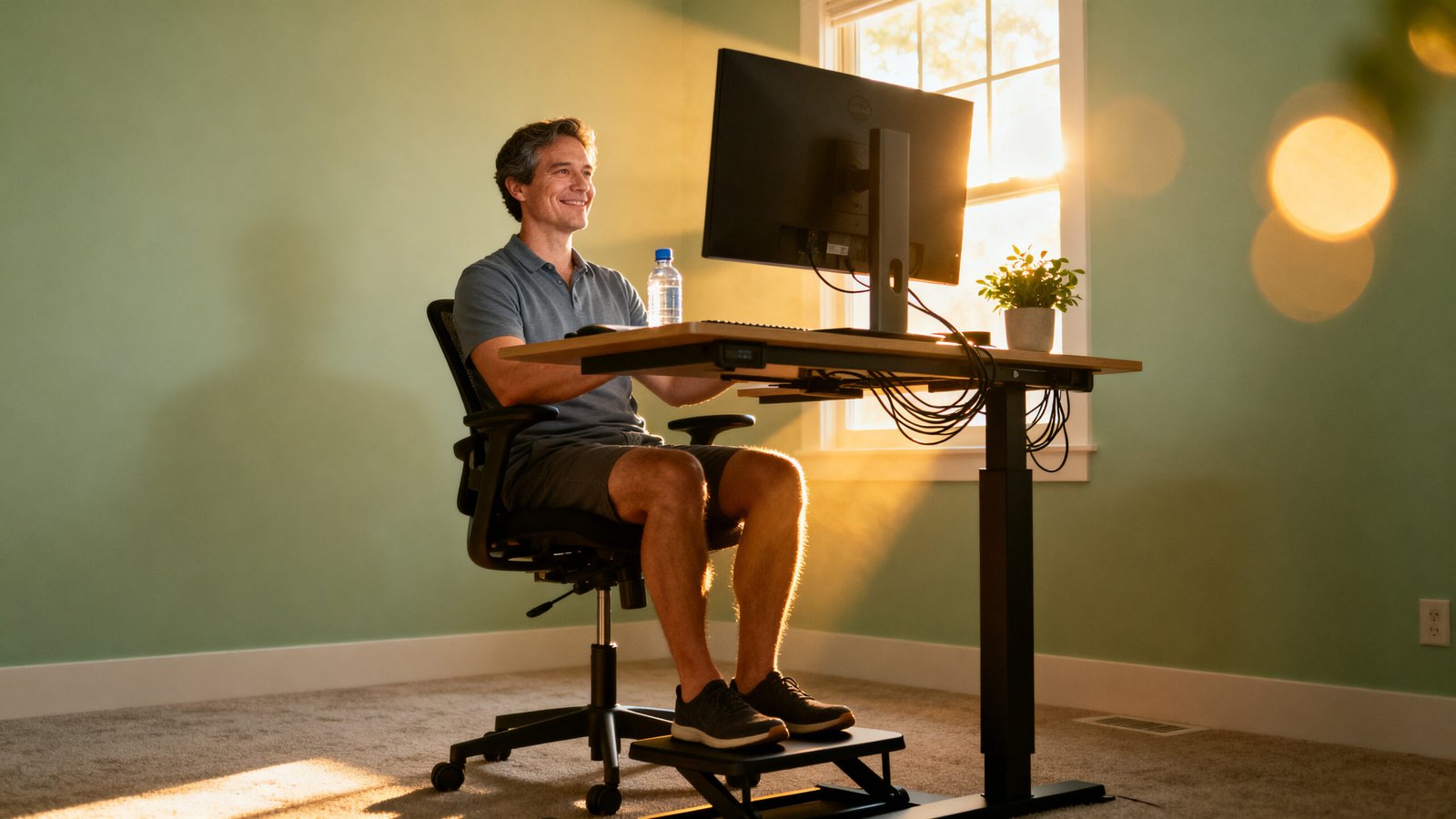
Durability, failure points, and smart buying
No data on failure rates, breakage points, or long term durability comparisons between budget and mid range ergonomic furniture was present in the research. This is another documented gap. The following guidance comes from general product knowledge and should be supplemented with aggregated user review data before finalizing any purchase recommendations.
Common failure points to watch: Gas lift cylinders on chairs are the most frequent point of failure, especially on budget models. Monitor arm tilt mechanisms lose tension over time, causing screen sag. Desk motor controllers on electric sit stand desks can fail, particularly when the desk is operated near its weight limit.
Warranty as a quality signal: Look for at least a 5 year warranty on chair mechanisms and gas lifts. Mid range chairs from reputable manufacturers often carry 10 to 12 year warranties. Budget chairs with 1 to 2 year warranties signal expected failure within that window.
User review red flags: When researching products, filter reviews by “most recent” and look for patterns. Multiple reviews mentioning gas lift sag after 6 to 12 months, armrest wobble, or mesh seat fabric loosening are predictive of durability issues. Aggregating this data from marketplace reviews is a required step before recommending specific models in an ergonomic workstation checklist 2026.
Quick fixes under $100 and investment buys
Not everyone can drop a thousand dollars on an ergonomic workstation setup in one go. Here is a practical split between immediate low cost fixes and strategic investment buys that solve the most common problems.
Under $100 fixes:
- External keyboard and mouse: $30 to $60. Breaks the laptop screen keyboard lock and lets you position each independently.
- Monitor riser or laptop stand: $20 to $50. Gets your screen to eye level without a full monitor arm.
- Lumbar support pillow: $25 to $40. Adds support to a kitchen chair or budget office chair.
- Footrest: $15 to $30. Helps shorter users achieve proper knee and hip angles when desk height cannot be adjusted.
Investment buys:
- Mid range ergonomic chair with adjustable lumbar support, adjustable armrests, and a Class 4 gas lift. Expect to spend $400 to $800 for a chair that lasts 7 to 10 years.
- Adjustable height desk that accommodates all household users. Cost data for desks fitting both a 5 foot 8 inch and 6 foot 2 inch user without a converter was not present in the research and must be sourced from current marketplace pricing.
- Quality monitor arm with gas spring adjustment. Around $80 to $150. Provides precise height, depth, and tilt control that fixed risers cannot match.
If you are starting from scratch, a home office setup under 1000 can cover the essentials if prioritized correctly. Spend the bulk on your chair first, then monitor positioning, then desk.
Your 30, 60, and 90 day improvement plan
While specific quantified outcomes from controlled 2023 plus trials are not in the research set, existing evidence supports that correcting major risk factors reduces musculoskeletal symptoms. Use this staged plan to monitor subjective improvement.
Days 1 to 30: Audit and fix. Complete the self assessment. Take photos. Score every item on the checklist. Fix all “Immediate fix” items in the first week. Order an external keyboard and monitor riser if you are laptop only. Document your baseline pain levels using a simple 0 to 10 scale for neck, shoulders, and lower back.
Days 31 to 60: Habit and cadence. Implement a sit stand cadence if you have the equipment. If not, focus on movement breaks every 25 to 30 minutes. Refine your chair adjustments. Test different lumbar support heights and backrest angles. Pay attention to your body’s feedback after long work sessions.
Days 61 to 90: Reassess and refine. Repeat the self assessment with photos. Compare your scores and pain ratings to baseline. Any item still scoring “Improve” or “Immediate fix” needs attention. If pain has not improved or has worsened, consult an ergonomics professional or physical therapist. A home office ergonomics assessment by a qualified professional costs less than chronic pain management.
Sources to cite and mandatory follow up research
Transparency about data gaps builds trust. Here are the exact gaps the writer must close before this content can be considered fully authoritative.
- ANSI and OSHA and ISO text: Obtain verbatim excerpts on footrest angle, wrist rest height, and the 90-90-90 rule from ANSI/HFES 100, BIFMA G1, ISO 9241-5, and relevant OSHA guidance documents.
- Desk height ranges: Source specific measurements in centimeters and inches for users of 5 foot 8 inches and 6 foot 2 inches from manufacturer specifications or standards.
- Cost range for adjustable desks: Gather current pricing for desks accommodating both heights without a converter.
- 2023 plus intervention study: Locate at least one peer reviewed study showing pre and post pain score outcomes from a standardized ergonomic intervention.
- Long term durability data: Aggregate 12 month plus failure rate data from consumer reviews on major ecommerce platforms for budget and mid range chairs and desks.
These five items are mandatory to source before publication if the goal is a truly authoritative ergonomic home office guide that stands up to scrutiny.
Conclusion
An ergonomic workstation setup is the highest leverage weekend project you can undertake for your long term health as a remote or hybrid knowledge worker. The data is unambiguous: up to 61% of remote workers are in pain, laptop users face triple the neck discomfort risk, and women bear a disproportionate share of repetitive motion injuries. The fixes are not mysterious. Break the laptop screen and keyboard apart, add lumbar support, introduce movement every 25 to 30 minutes, and audit your setup with the checklist in this guide.
What separates this guide from the pack is transparency about what we do not yet know. Some data gaps, like 2023 plus intervention studies and long term product failure rates, are real and should inform how confidently you interpret any single recommendation. Where the evidence is strong, act now. Where the evidence is thin, proceed thoughtfully and consult a professional when pain persists. Your body will tell you if the changes are working. Listen to it.
FAQ
How do I know if my ergonomic workstation setup is actually working?
Track your pain levels subjectively using a 0 to 10 scale for neck, shoulders, and lower back before you make changes. Reassess every two weeks. If pain trends downward and you can work longer without discomfort, the setup is working. If pain stays the same or worsens after 30 days, consult an ergonomics professional. Objective improvement should be noticeable within the first month for most users.
Can I create an ergonomic workstation setup without buying a new desk?
Yes. The highest impact changes do not require a new desk. An external keyboard and mouse, a laptop riser or monitor, and a lumbar support pillow can be sourced for under $100 total. Focus on screen height and chair support first. A fixed height desk can work well if your chair height adjusts correctly and you use a footrest if needed.
What is the single most important item to buy for an ergonomic home office?
If you currently work on a laptop with no external peripherals, buy an external monitor or a quality laptop riser plus a separate keyboard and mouse. The research shows laptop users face 2 to 3 times higher risk of neck, upper back, and lower back discomfort. Breaking the screen and keyboard apart is the single highest impact change.
Why do women face higher ergonomic injury risk when working from home?
Research shows women are over 2.3 times more likely to report neck, lower back, and shoulder pain and account for 63% of repetitive motion injuries. Contributing factors include anthropometric differences that generic ergonomic products do not accommodate, such as shorter torsos requiring different lumbar support placement, as well as potential disparities in access to employer provided ergonomic equipment. An equitable setup accounts for these differences explicitly.
How often should I switch between sitting and standing at a sit stand desk?
Target a transition every 30 to 60 minutes based on common ergonomics practice. Standing for prolonged periods creates its own set of problems, including lower back fatigue and increased risk of varicose veins. Start with 15 to 20 minutes of standing per hour and adjust based on comfort. Specific transition timing data was not present in the core research for this post and represents an area where more controlled studies are needed.